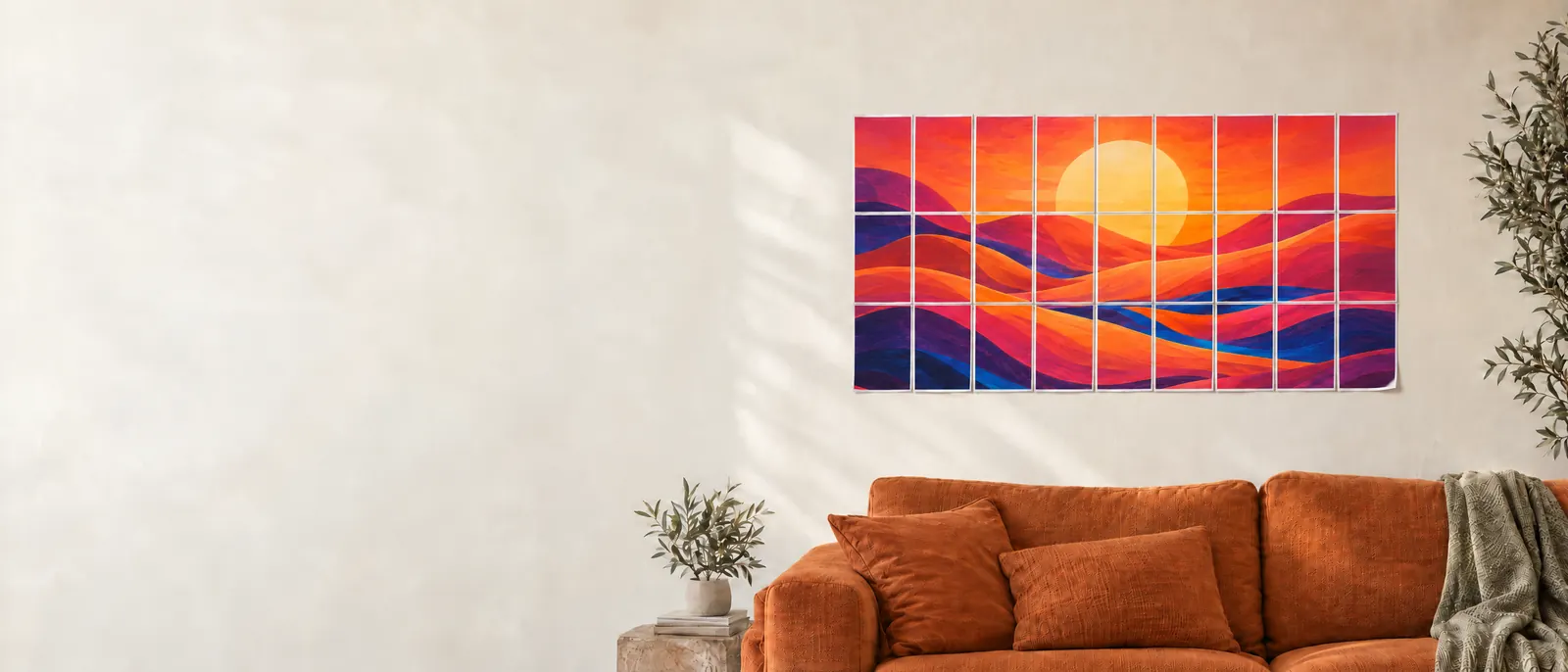
The short answer
If you're wondering, “How can I print a large image on multiple pages?”, use the studio on this page: upload your image, choose your paper and poster size, then download the tiled PDF. Print the poster pages at Actual size / 100%, one page per sheet, trim the overlapping edges and tape the sheets together. The splitting happens here, not in your printer settings.
Before you start
Have a JPG, PNG or WebP image, paper your printer supports, scissors or a craft knife, a ruler and tape. Use the original, largest-resolution image you have rather than a small preview from a messaging app. Only print artwork you own or have permission to use.
Ordinary image imports and PDF splitting stay in your browser. AI creation is optional and sends your prompt or reference image to the generation service; it is not required for this tutorial.
How to print a big picture on multiple pages
- 01
Use the studio on this page and add your image
In the studio above, select Upload image, then browse files or drag your picture into the upload area. JPG, PNG and WebP are supported. You can also import a PDF and select a page, but a photo file is the simplest starting point.
Your image appears in the preview on this page. If you need to remove a border or unwanted background, choose Crop image before setting the final poster size. You can also try a built-in sample before using your own picture.
Learn how to print a poster on multiple pages by trying each step in the studio above—there is no need to leave this guide.
- 02
Match the paper to your printer
In Size your block poster, set Paper size to the paper you will actually load, such as A4 or US Letter. Select Portrait or Landscape under Paper orientation. These settings describe each individual sheet, not the shape of the whole poster.
The same image can require a different number of sheets when you change paper size or orientation. Check the preview rather than assuming A4 and Letter are interchangeable.
Use the same paper size in the studio, the PDF print dialog and the physical printer tray.
- 03
Choose the poster size and fit
Move the pages wide slider to choose how many sheets span the poster. Start with 3 pages wide for a manageable test. Leave Auto height on to calculate the rows, or turn it off and choose Pages high yourself. Use cm instead lets you set a target width in centimetres.
Choose Fit to keep the current crop fully visible; unused space stays white. Choose Fill to cover the grid while cropping the image edges, without stretching the picture. Inspect faces, text and important details before continuing.
Free supports up to 5 sheets across, not 5 sheets in total. A 3-column, 3-row layout uses 9 sheets and is within the free width limit.
- 04
Set margins, overlap and assembly guides
Margin leaves space around the printable image on each sheet. Choose a margin your printer can handle. Overlap repeats a narrow strip of the picture on neighbouring sheets so you can align them; 10 mm is a useful starting point, not a rule for every printer.
Open Crop & advanced settings and keep Assembly guides & sheet labels on if you want trimming marks and page labels. Guides require at least a 5 mm margin. Check the page preview and the effective image DPI: enlarging the poster spreads the same source pixels over a bigger area.
You can download the free printer calibration page and measure its ruler at 100% before committing paper and ink to the full poster.
- 05
Review the pages and download your PDF
Check the finished dimensions, total sheets and individual page previews. For a free basic PDF, keep Keep brand watermark switched on and stay within 5 sheets across. Click Download poster PDF. The free version does not require an account and exports at up to 150 DPI with a watermark. The PDF starts with an assembly guide on page 1; the actual poster tiles start on page 2.
For a watermark-free PDF, switch off the watermark and use a subscription or a one-time source-image unlock. Paid downloads support up to 10 sheets across and up to 300 DPI, subject to the detail in your original. Splitting and PDF downloads do not use AI credits.
Save project if you want to revisit the layout. Local projects belong to this browser; export a backup before clearing browser data.
- 06
Print at Actual size / 100%
Open the downloaded PDF in a PDF viewer. Page 1 is an assembly guide, not a poster tile: select the poster pages from page 2 to the end. Choose matching paper, one PDF page per physical sheet, single-sided printing and Actual size or 100% scale. First print one poster page and check the image, margins and scale before printing the rest.
Do not choose Poster or tile the file again: BlockPoster.ai has already split it into paper-sized pages. Avoid Fit to page or Shrink to printable area, which can change the scale. If an edge is clipped at 100%, check the paper settings and increase the margin in BlockPoster.ai, then export again.
Adobe describes Actual Size as printing without scaling. Its Poster mode is for splitting a single large page, a step our downloaded PDF has already completed. [1] [2]
- 07
Trim, align and assemble your poster
Lay the sheets out in their labelled order on a flat surface. Work across one row at a time. Trim the blank edge on one side of each join, then place that sheet over its neighbour so the repeated image in the overlap lines up. Do not trim away both matching image strips before checking the join.
Tape each aligned join from the back, finish the rows, then join the rows together. Trim the outer border only after the whole picture is aligned. Your small sheets now form one large block poster.
Epson's assembly guidance also uses overlapping alignment marks and tape on the back. Exact trimming marks vary between tools, so follow the guides in your own PDF. [3]
A practical first layout: 3 sheets wide
To see how to print a poster on multiple pages, try A4, Portrait, 3 pages wide, Auto height, Fit, a printer-safe margin and 10 mm overlap. The preview calculates the rows. If it shows 3 rows, you will print 9 sheets. The finished image is not simply three full paper widths: margins and repeated overlap affect its dimensions, so use the size shown in the preview. The downloaded PDF then contains 10 pages: 1 assembly guide and 9 poster tiles. Print the 9 poster pages, not the guide, for your wall image.
If the print does not look right
The assembled picture is too small
Check that the PDF was printed at 100%, not Fit or Shrink. Also turn off multiple-pages-per-sheet printing. If the scale is correct but the poster is still too small, increase the target width in BlockPoster.ai and export a new PDF.
Edges do not line up
Use identical paper, orientation and scale for every page. Align the repeated image in the overlap, not just the outside paper edges. If a printer clips the picture, increase the margin and re-export instead of changing the scale halfway through the set.
The image looks blurry
Use a higher-resolution original or reduce the poster size. Selecting 300 DPI cannot recreate detail missing from a small source image. Read the effective DPI guidance in the preview and test one detailed area before printing everything.
There are white strips or cut-off subjects
Fit can leave white space when the picture and grid have different proportions. Fill removes that space by cropping the edges. Recheck the crop and preview; printer margins are separate and may still need trimming during assembly.
How to print a large picture on multiple pages: FAQs
How can I print a large image on multiple pages with A4 sheets for free?
Use the studio on this page to upload your image, choose A4 and set your poster layout, then download the basic watermarked PDF. It is free without an account at up to 150 DPI and supports up to 5 sheets across, not 5 pages total. Print at Actual size / 100%, then trim and assemble the pages; paper and ink are supplied by you.
Do I need Photoshop, Word or a special poster printer?
No. BlockPoster.ai creates the tiled PDF in your browser. You need a PDF viewer that can print at 100% and a printer that supports your selected paper size. A computer is useful if a mobile print dialog does not expose scale controls.
Should I use Adobe Acrobat's Poster option for this PDF?
No. Poster mode is useful for tiling a single oversized PDF page. A BlockPoster.ai download is already divided into separate paper-sized pages, so print it at Actual size / 100%, one page per sheet, without tiling again.
Can I use AI artwork instead of uploading a photo?
Yes. Create with AI is available in the same studio and uses AI credits. Once the image is ready, follow the same paper, size, preview and PDF steps. AI generation is optional; splitting an existing image does not consume AI credits.
Printing references
The studio instructions above describe BlockPoster.ai. These independent manufacturer guides explain the general printing and assembly principles, not an endorsement of our website.